
Asphalt / Sand surfaces
Asphalt and Sand Surfaces
Surfaces create real drivable areas such as parking lots, runoffs, paddocks, and sand traps. Unlike Texture Paint (visual only), surfaces are physics meshes with their own grip.
- Asphalt - Paved grip, good for parking, pits, and runoff
- Sand - Lower grip sand physics, good for traps and soft runoff
Drawing a Surface
Open the Surface tool and pick a type and edge style:
- Asphalt Square / Sand Square - Straight edges between points (optional Corner Radius in settings)
- Asphalt Round / Sand Round - Curved edges between points
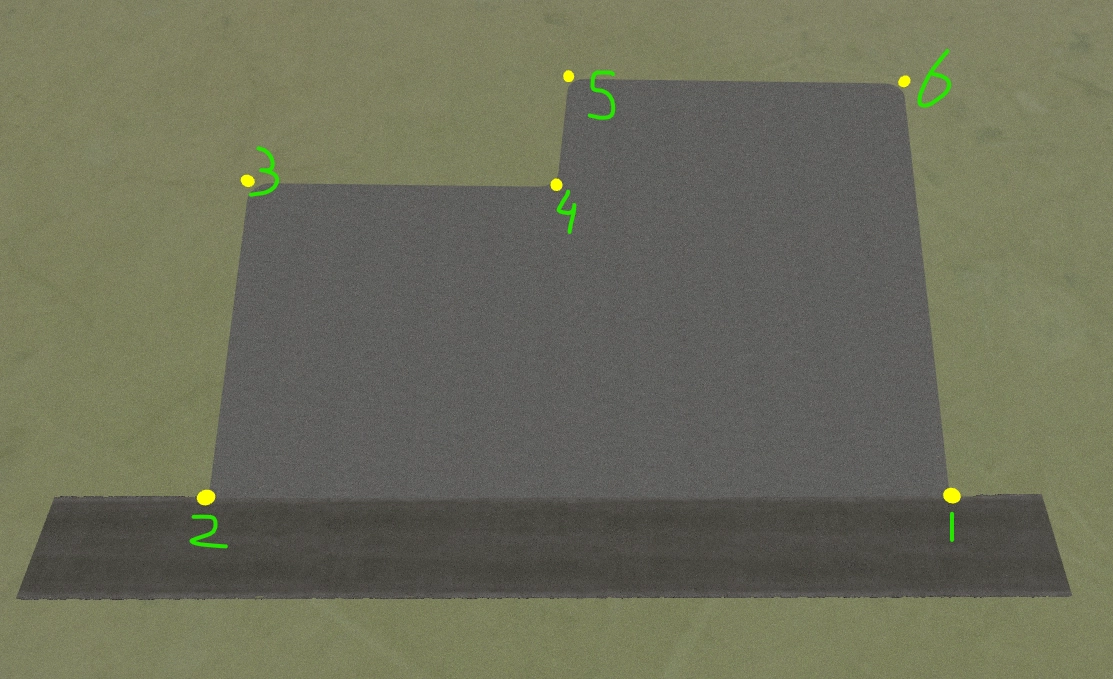
- Left click - Place outline points. After a few points the shape starts to fill
- Right click a point - Delete that point
- Right click empty ground - Start a new surface
- Right click a surface - Select that surface
- Move - Drag control points. Middle-click + drag a point moves the whole surface
Flat Surfaces On vs Off
In Surface Settings, Flat surfaces controls how height is built. This is the big choice for each surface.
Flat surfaces on (default for new surfaces): the surface uses heights you author on its control points. The interior stays a smooth, flat-ish plateau between those points instead of copying every bump in the terrain. Turn this on when you want a level parking lot, raised pad, or stepped area, and when you want to use the Surface Height tool.
Flat surfaces off: the surface drapes over the terrain. Edge and interior height follow the ground, shaped by Terrain Influence, Blend Distance, and Smoothing Passes. Use this for runoff or sand areas that should hug the landscape. Terrain Influence goes from 0 (flatter) to 1 (follow terrain closely). With Flat surfaces off, node height edits from the Surface Height tool are ignored.
Terrain Blend Reach is available either way. It sets how wide the blend apron is from the surface edge into the surrounding terrain (0 is a hard edge).
Surface Height Tool
Use Surface Height when Flat surfaces is on for that surface. It lets you set height per control point:
- Drag a node handle - Raise or lower that point
- Shift + click handles - Multi-select, then drag to move them together
- Node Y - Type an exact height for the selection
- Flatten all nodes - Level every editable point (to the selected point's height, or to their average if none is selected)
- Click a surface - Switch to editing that surface
Heights you set stay sticky when you move those points later. If Flat surfaces is off, the height panel tells you to enable it first, because terrain-draped surfaces ignore authored node Y.
Snapping Surfaces to Roads
Surfaces can snap to road edges for clean joins:
- Click a road edge - The surface point snaps to that spot on the road
- Order matters - Place outline points in order around the shape you want
- Junction corners - To fill into two roads that meet, click the exact corner between them
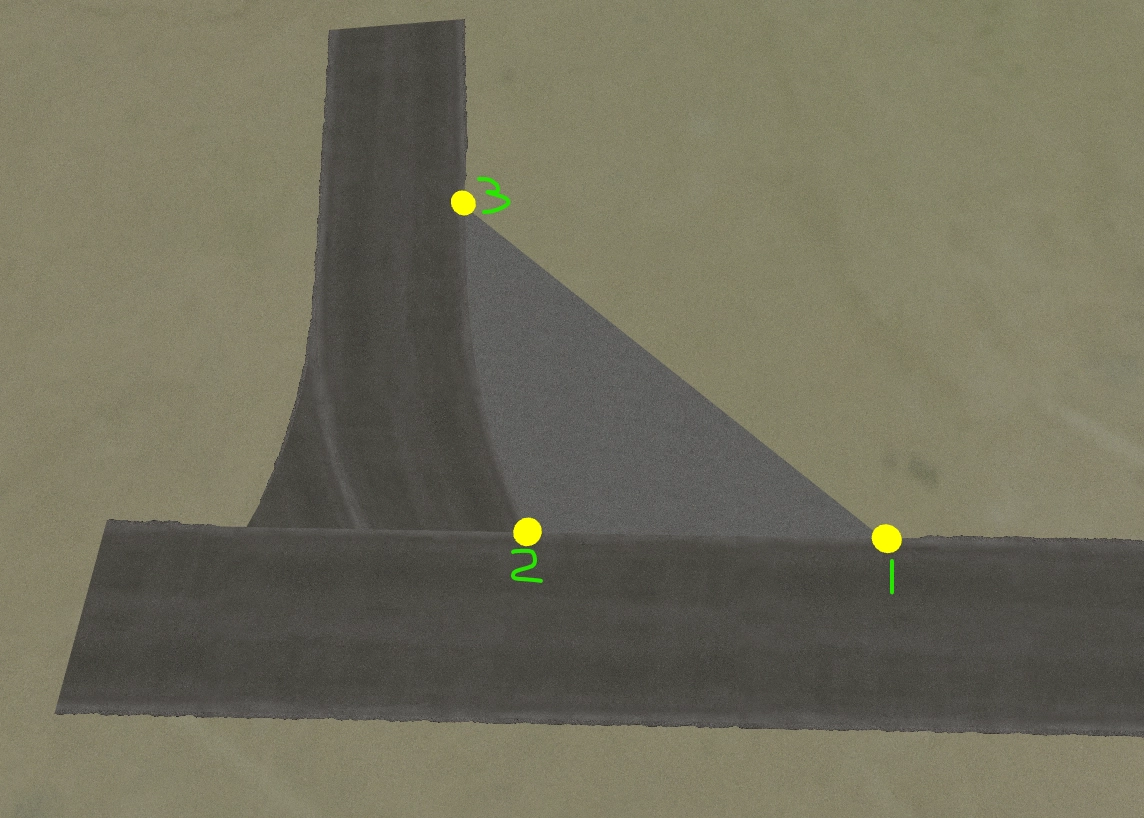
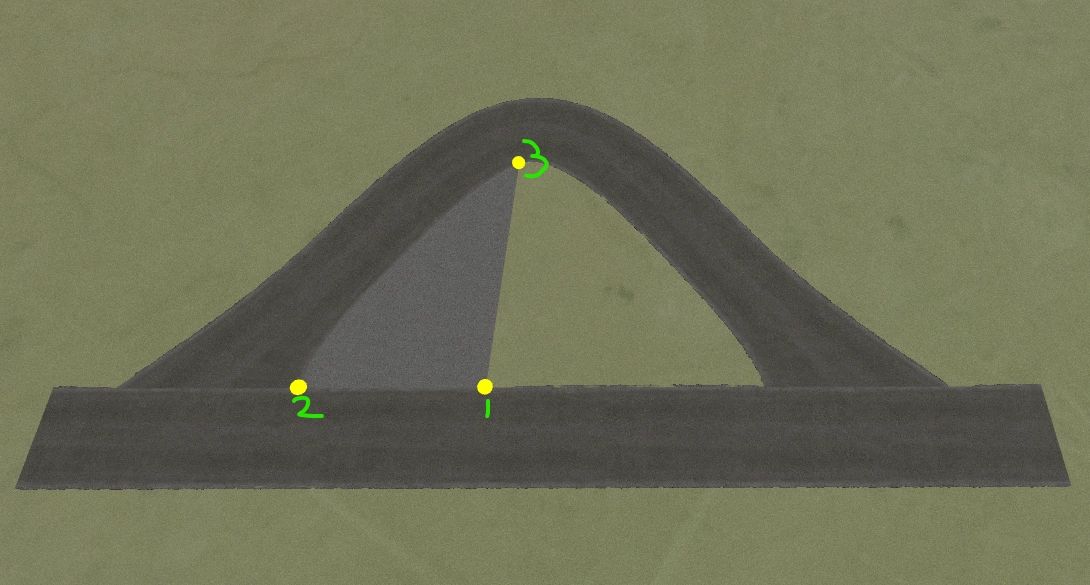
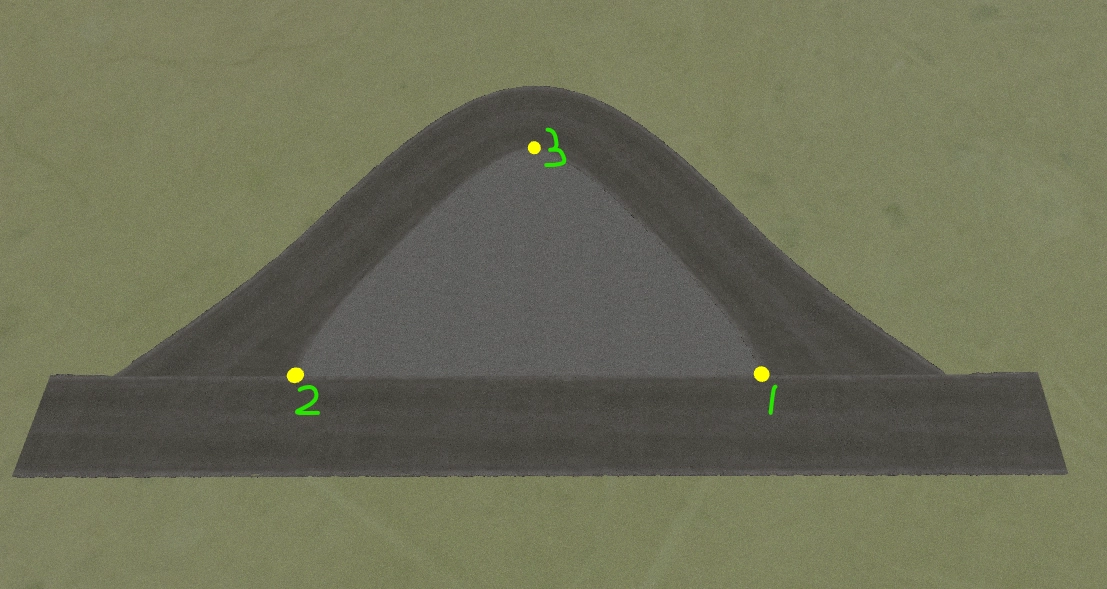
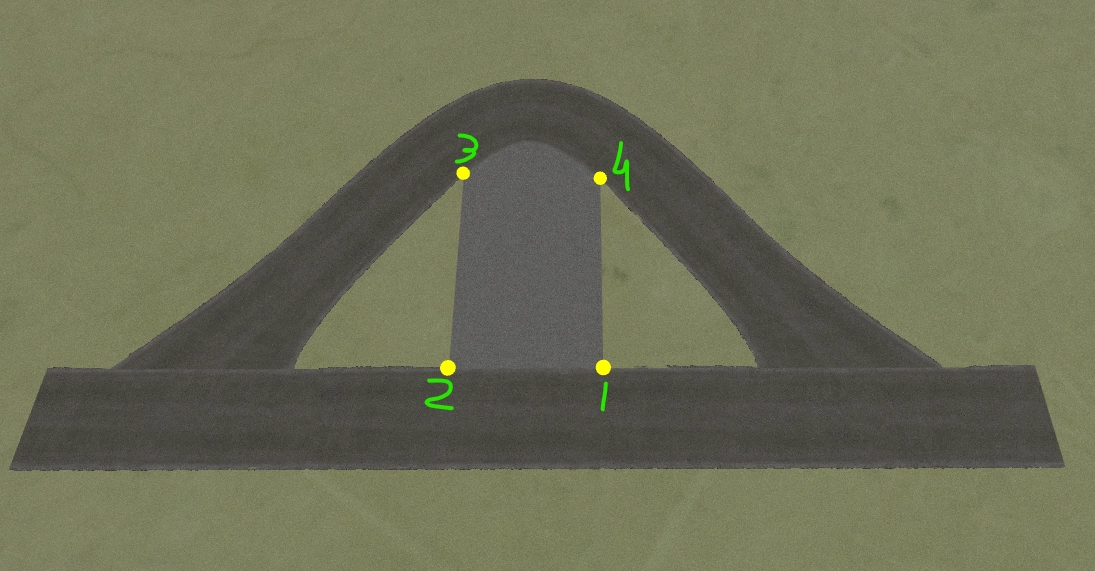
Surface Settings
Each surface keeps its own settings in the Surface Settings panel.
Elevation and Mesh
- Flat surfaces - Authored heights vs terrain drape (see above)
- Corner Radius - On square-edge surfaces, round the corners (0 = sharp)
- Terrain Influence / Blend Distance / Smoothing Passes - Only when Flat surfaces is off
- Terrain Blend Reach - Apron width into surrounding terrain
- Grid Resolution - Mesh cell size. Smaller is more detail; larger is lighter
- Boundary Smooth Passes - Advanced option when Flat surfaces is off, to soften jagged freehand edges
Materials and Look
- Asset Bank Material - Optional custom asphalt material (asphalt surfaces only)
- Asphalt Texture - Built-in Normal, Red, Blue, or Green when no custom material is selected. Sand always uses the sand look
- Texture Tile Size / Rotation - How large and which way the texture sits on the ground
Grip
Asphalt surfaces can use a custom AC surface key from your surfaces.ini setup (see Road Grip & Settings). Sand keeps the built-in sand export key.
Tips
- Parking lots and pads: Flat surfaces on, then Surface Height to level or raise them
- Natural runoff or sand that should follow the land: Flat surfaces off, raise Terrain Influence
- Keep outlines reasonably simple for cleaner meshing
- You can connect roads to surface edges when building pit entries and merges